
Your public support form
A page anyone can open, without an account, to raise a ticket with your business. Share the link on your website, in your email signature or in a client's welcome pack.
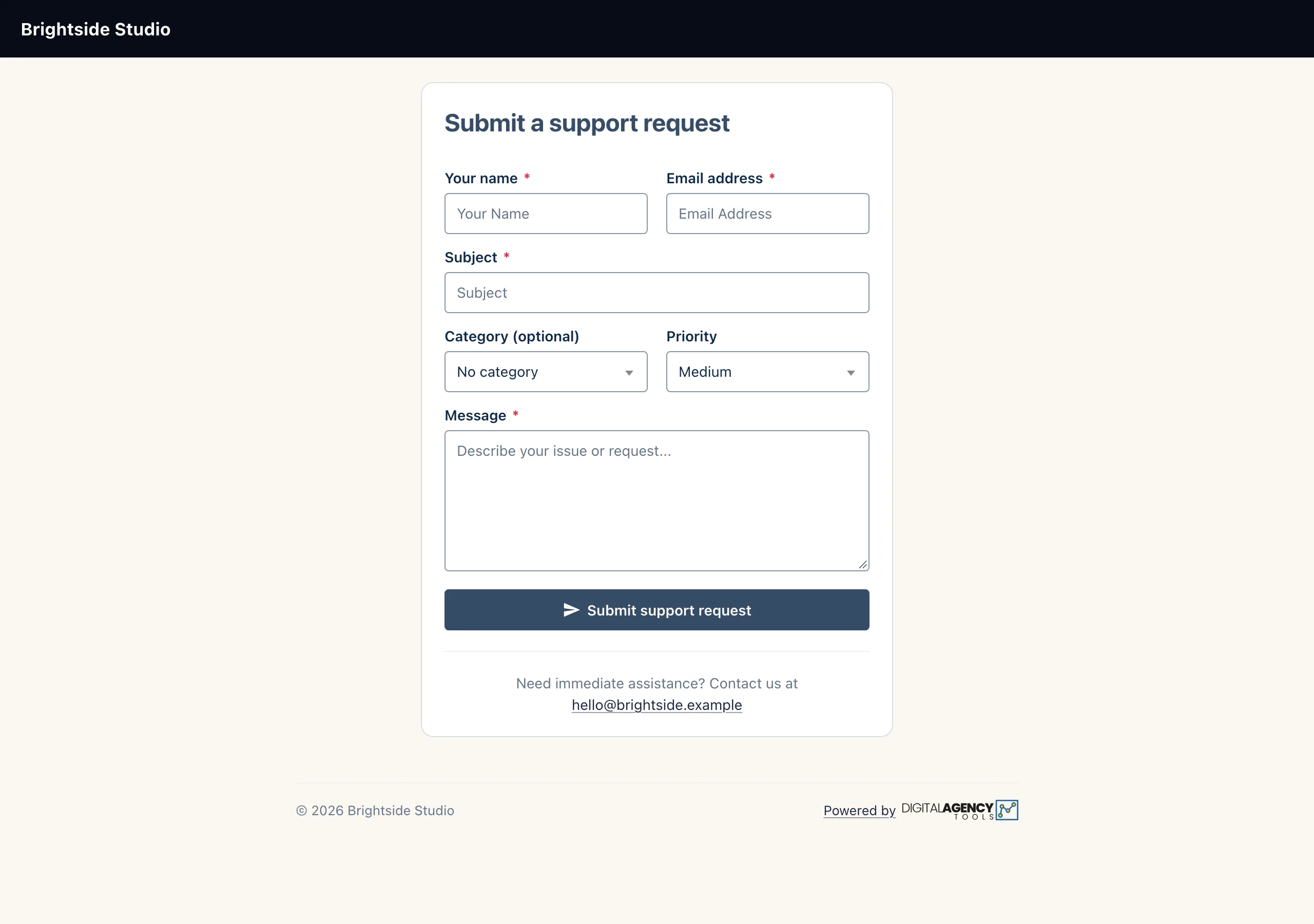
How to
- Get your business number from support. The panel does not show it yet.
- Build your link:
https://app.digitalagency.tools/support?business_id=followed by that number. - Open it in a private browser window to check it shows your business name and colours.
- Share the link wherever clients look for help.
What the client fills in
The form is titled Submit a support request. Name, email address, subject and message are required. Priority defaults to Medium, and the client can raise it. If you have ticket categories, a Category (optional) list appears too.
They click Submit support request and see their ticket number on the page straight away.
Fields
Your name        required
Email address    required
Subject          required
Category         optional, if you have any
Priority         Low · Medium · High · Urgent
Message          required
What happens next
A ticket opens in Tickets with status New, and the client's message is its first entry. If their email address matches one of your contacts, the ticket is linked to that client.
The client is emailed a confirmation with the ticket number, subject and priority. It asks them to keep the ticket number in the subject when they write again, so their emails thread onto the same ticket. The ticket also shows in Needs attention on your dashboard.
On submit
ticket created    status: new
first message     from the client
email sent        "Support Request Received
                   - Ticket #TK-…"
dashboard         needs attention
Good to know
- The confirmation email goes out through your email settings. Verify your email domain so it comes from you; see Send email from your domain.
- Clients with a portal can see their open tickets there, if you have tickets turned on in portal settings.
- The page is for people outside your team. Test it in a private window: while you are signed in to the panel, the address takes you to your dashboard instead.
?business_id= with your number. Without it the
page does not know which business the request is for.
Still stuck?
Can't find what you're looking for? Send us a message and we'll reply by email.