
The planner
The planner puts your unscheduled tasks beside a calendar. Drag a task onto a time slot to block out time for it, and see it alongside your meetings.

How to
- Open Projects → Planner. It opens on today, in day view.
- Find a task in the Task backlog. Narrow the list with Search tasks... or the project filter.
- Drag the task onto the calendar at the time you want to work on it. It is blocked out for its estimated time, or an hour if it has no estimate.
- Drag the block to move it, or drag its bottom edge to make it longer or shorter.
- To take it off the schedule, click the block and choose Unschedule. It goes back into the backlog.
Day, week and month
Switch views with the Day view, Week view and Month view icons at the top right. In day and month view, use the arrows and Today to move through the calendar. Above the calendar you can see how much time is scheduled and how much is still available in the working day.
Week view is a board instead of a calendar: an Unscheduled column, then one column per day from Monday to Sunday, each showing how much is planned. Drag a task onto a day to plan it, between days to move it, or back to Unscheduled to take it off. A task dropped onto a day from the tray starts at 9:00; moving it to another day keeps its time.
Views
/planner              day
/planner?view=week    week board
/planner?view=month   month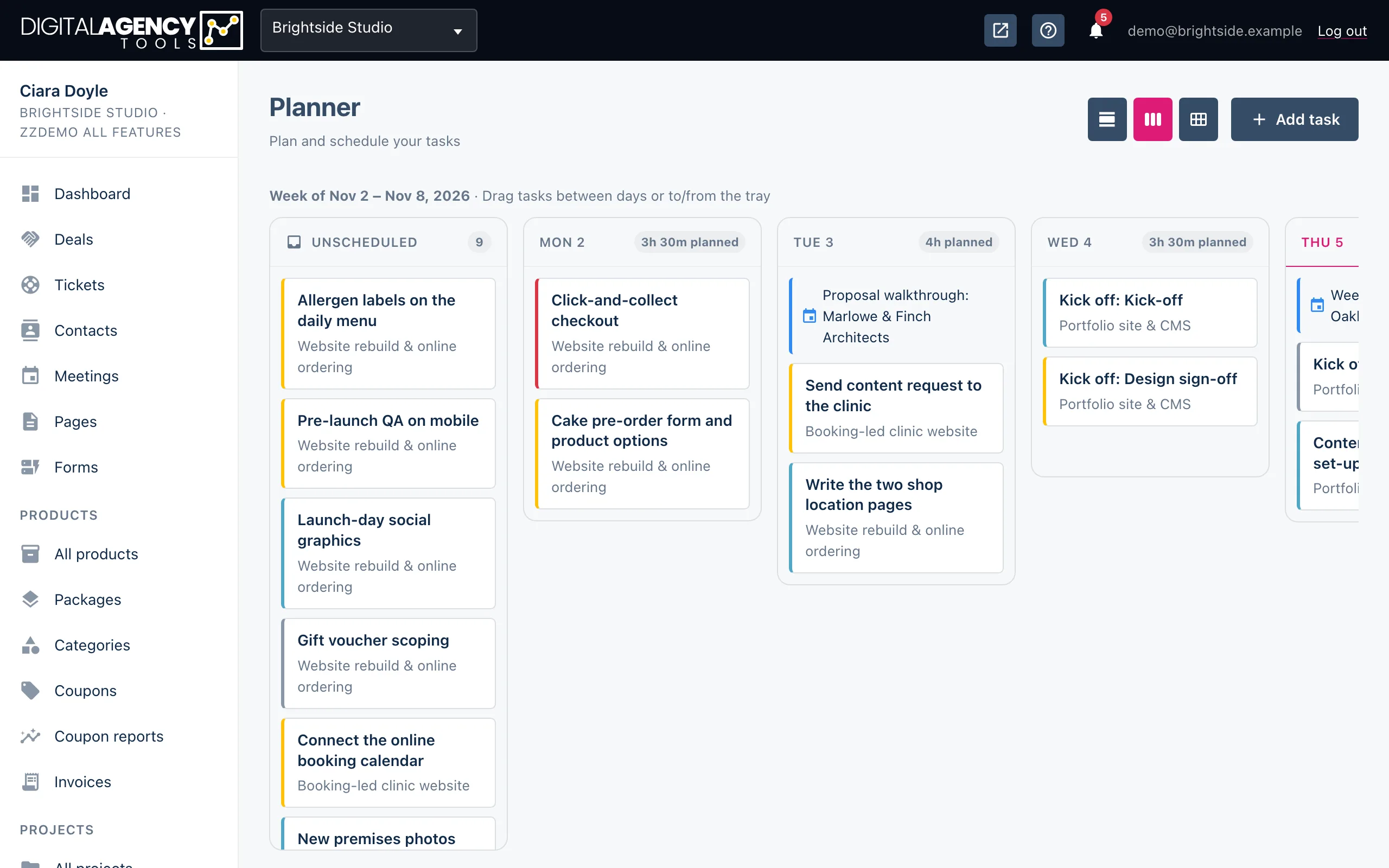
What is in the backlog
The backlog lists every task that is not yet scheduled and not finished, grouped by project. Urgent and high-priority tasks come first, then by due date. Overdue due dates are highlighted.
When everything is scheduled, the backlog says All tasks are scheduled! Use Add task at the top of the page to add another.
Meetings and Google Calendar
Your meetings appear on the calendar too, except cancelled and no-show ones. Click a meeting to open it. Meetings and Google events cannot be moved by dragging — only tasks can.
If you have connected Google Calendar, a task you schedule is also added to your primary Google calendar.
Use Display settings to show or hide Meetings, Tasks and Google Calendar events. These choices are saved for your whole business, not just for you.
Still stuck?
Can't find what you're looking for? Send us a message and we'll reply by email.